
WooCommerce Checkout Slow? Find the Real Cause Before It Costs You Sales
Why is my WooCommerce checkout slow? If you are asking that, you have probably felt the wait yourself. Or a customer told you about it. Or you saw shoppers reach the checkout page and then vanish. It is a fair question, and the answer is rarely “buy better hosting.” A WooCommerce checkout slow enough to scare buyers can come from a shipping plugin, a tracking script, a payment step, or all three at once.
Most guides hand you a long list of fixes and wish you luck. This one starts somewhere else. First, we find where the delay happens. Then we walk through seven hidden causes, a 15-minute test, and the safest steps for WooCommerce checkout optimization.
Why Is My WooCommerce Checkout Slow? Start With the Moment It Slows Down
A slow WooCommerce checkout usually comes from heavy plugins, live shipping or tax lookups, third-party scripts, or a server that struggles under load. The right fix depends on when the delay happens: while the page loads, while the totals update, or after the customer clicks Place Order.
Why does timing matter? Because checkout is not a normal page. As Pantheon explains, it works out totals, shipping rates, taxes, and discounts, then passes data to gateways like Stripe or PayPal. That is a lot of work for one page.
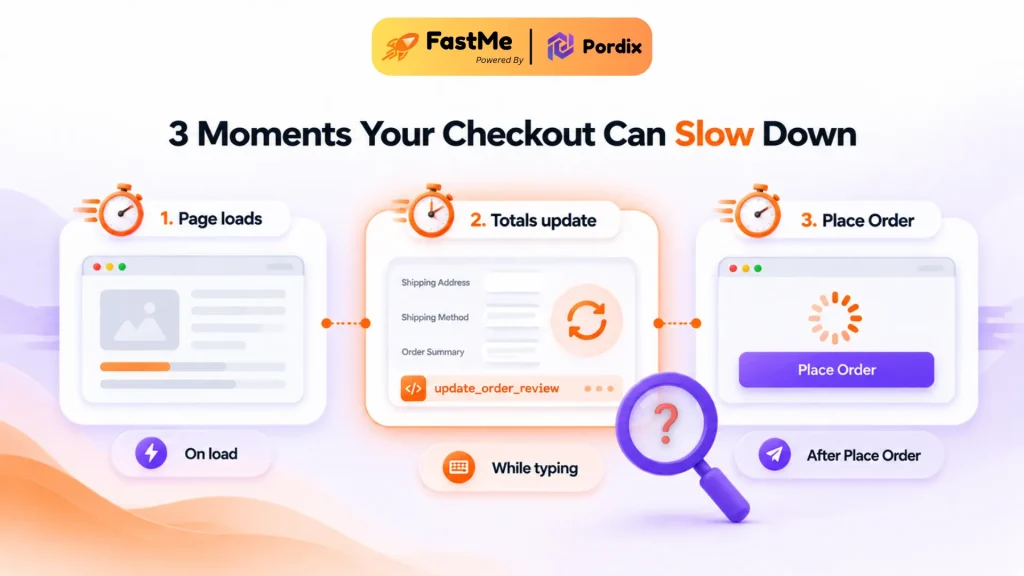
Watch for these three moments:
- Slow on load. The page takes ages to appear. Think server response, theme weight, and heavy scripts.
- Slow while typing. Totals take seconds to refresh after a customer changes an address, coupon, or shipping method. WooCommerce sends a background request called wc-ajax=update_order_review each time. Shipping and tax code runs here.
- Slow after Place Order. The button spins. WooCommerce is creating the order, calling the payment gateway, and often sending emails.
One quick check before you go on. If every page is slow, not just checkout, you have a bigger WooCommerce slow problem. Start with our guide on how to increase your website loading speed, then come back. If only checkout drags, keep reading.
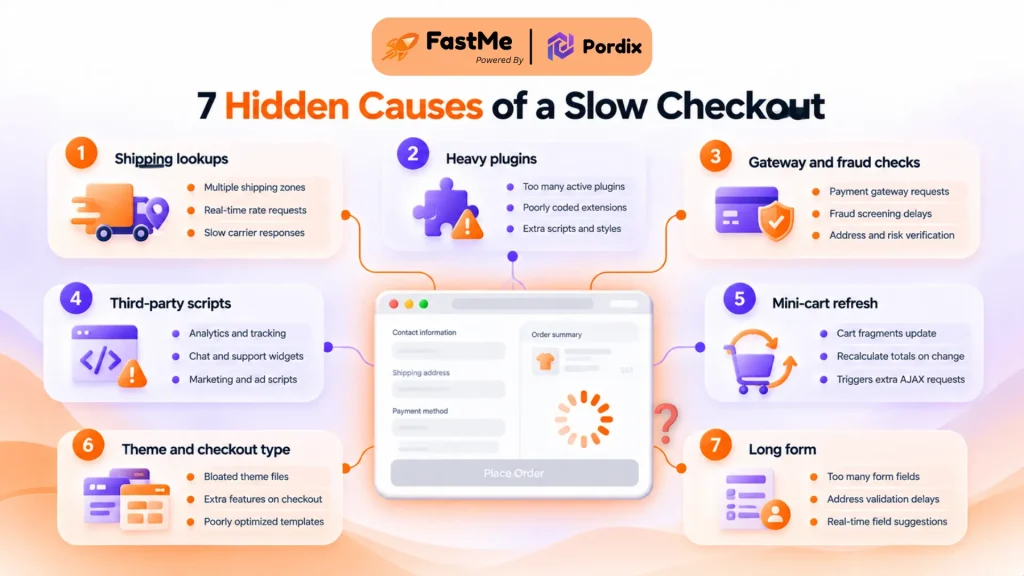
WooCommerce Checkout Very Slow? 7 Hidden Causes Behind the Delay
Store owners often search for this as “WooCommerce checkout very slow.” It rarely has one cause. It is usually a few small ones stacked together. Here are the seven we would check first.
1. Live shipping rate lookups
Some shipping plugins ask a carrier for live prices each time a customer changes their address. Your checkout then waits on someone else’s server. If that server is slow, so is your page. Each address edit can trigger a fresh update_order_review request. Stores with many zones and rules make every calculation heavier. If you do not need live rates, flat or table rates are much lighter.
2. Plugins that hook into checkout
Tax tools, upsell offers, abandoned cart savers, and analytics plugins often run code on every checkout update. Each update reruns the whole order calculation, so every hooked plugin runs again too. One extra database query is nothing. Ten plugins running several queries each, on every field change, is a real delay. One or two well-built plugins are fine. A dozen is not.
3. Payment gateway and fraud checks
After a customer clicks Place Order, WooCommerce waits for the gateway to answer before it can finish the order. Address checks and fraud screening add more outside calls. Some stores also send order emails in that same request. Each extra step adds seconds. If the gateway is the slow part, no site tuning will fix it. Check your gateway’s status page first.
4. Third-party scripts
Chat widgets, heatmaps, ad pixels, and review badges all love to load on checkout. Each one adds requests, and some block the page from showing. The HTTP Archive’s Web Almanac shows third-party requests growing year after year across every site rank. Google research found the chance of a bounce rises 32% as load time goes from one to three seconds. Your shopper does not need a chat bubble while typing a card number.
5. Mini-cart refresh calls
WooCommerce can send a request called wc-ajax=get_refreshed_fragments to keep the cart icon in your header up to date. That is one more background call on a page that already makes several. On some themes, it fires far more often than needed. Watch for it in the Network tab. If it repeats again and again, ask your developer to limit it to pages that show a mini-cart.
6. A heavy theme, page builder, or checkout type
Sliders, animations, big fonts, and stacked builder sections add code that a payment form never needed. Heavy headers and popups often load on checkout by default. Your checkout type matters too. Since version 8.3, WooCommerce uses the block-based checkout by default on new stores. Many older stores still run the classic [woocommerce_checkout] shortcode.
The block version draws more of the page in the browser so that a weak phone can feel the delay on first load. The classic version leans on your server and every plugin hooked into it. Neither is always faster. The only way to know is to test yours.
7. A long, cluttered form
This one is about feeling slow. Baymard’s 2024 research found the average checkout has 11.3 form fields, while most sites need only about 8. Baymard says simple cleanups can cut the visible fields by 20 to 60%. They also found that nearly one in five shoppers have abandoned a cart because checkout was too long or complicated. Cutting optional fields is free WooCommerce checkout optimization. People move faster, even if your server speed stays the same.
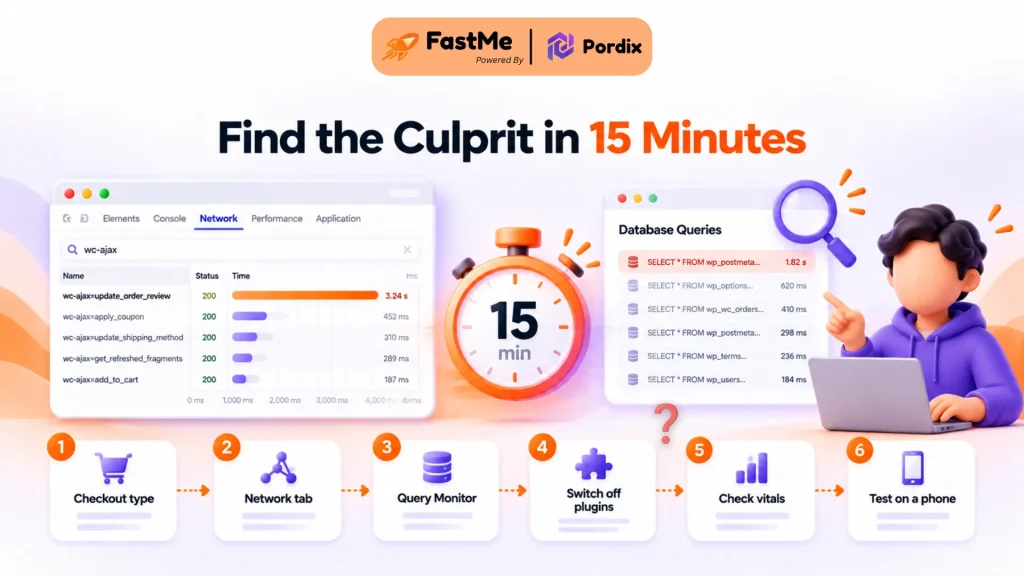
How to Find the Culprit in 15 Minutes
Do these steps on a staging copy of your store. Never experiment on live checkout.
- Check which checkout you use. Open the Checkout page in the editor. If you see a Checkout block, you run the block version. If you see a shortcode, you run the classic one. Block checkout points you to browser scripts. Classic points you to plugin code.
- Open your browser’s Network tab. In Chrome, press F12, open Network, and type wc-ajax in the filter. Walk through checkout. The slowest request tells you which of the three moments is the problem.
- Install Query Monitor on staging. The free Query Monitor plugin shows slow database queries and which plugin or theme caused them.
- Switch things off one by one. Turn off non-essential plugins and switch to a default theme—Retest after each change. When checkout speeds up, you have your suspect.
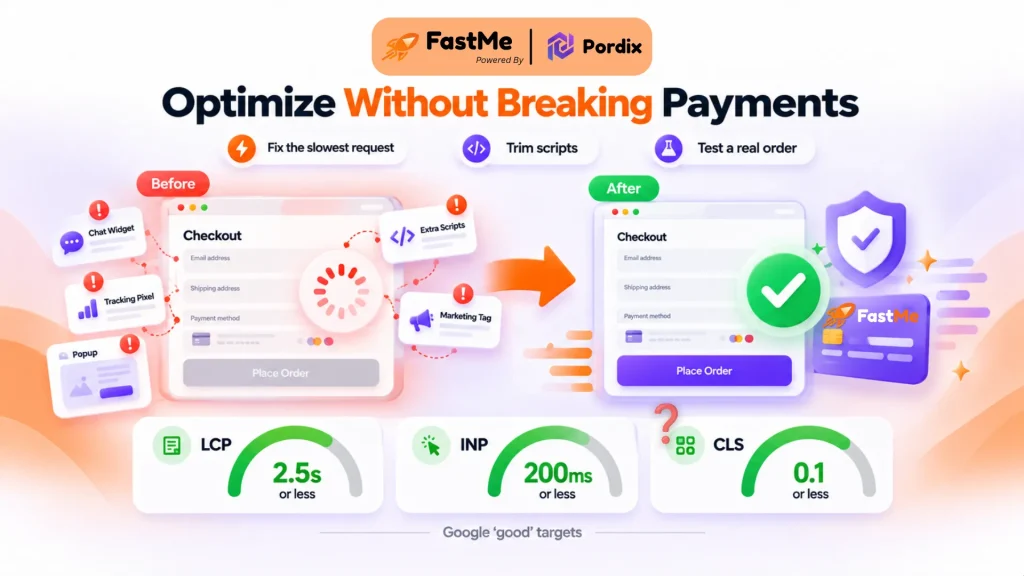
- Check Google’s targets. Google’s Core Web Vitals thresholds call a page “good” at an LCP of 2.5 seconds or less, an INP of 200 milliseconds or less, and a CLS of 0.1 or less, measured at the 75th percentile of real visits. Our guide to improving Core Web Vitals in WordPress shows how to read these numbers.
- Test on a real phone. Many shoppers pay on mobile. Weaker phone processors struggle with heavy scripts more than your laptop does.
Write down your numbers before you change anything. Without a “before,” you cannot prove a fix worked.
Still asking why is my WooCommerce site so slow during checkout after all six steps? The cause is likely at the server level. Check that your host runs a current PHP version. Also check that high-performance order storage (HPOS) is on, under WooCommerce > Settings > Advanced > Features. HPOS keeps orders in their own database tables instead of mixing them with posts.
If a WooCommerce checkout is very slow problem survives every test, read our guide to speed up the WooCommerce checkout page. It covers database cleanup, object caching, and PHP workers in detail.
WooCommerce Checkout Optimization: Fixes That Won't Break Payments
Once you know the cause, fix it in a safe order. Checkout is the one page where a quick tweak can stop orders completely.
- Fix the slowest request first. If shipping is the culprit, trim extra rules or switch to a lighter plugin. If another plugin is the culprit, replace it or drop it.
- Remove what checkout does not need. Load chat widgets, heatmaps, and extra pixels on other pages only.
- Simplify the form. Remove optional fields you never use, and allow guest checkout.
- Defer scripts with care. Never delay your payment gateway scripts or core jQuery files. Delay tracking and popups instead.
- Do not page-cache checkout. It is personal to each shopper so that a cached copy can show wrong totals. WooCommerce’s own docs say cart and checkout must stay dynamic.
- Do not switch checkout types on a live store. Some plugins built for the classic checkout do not work with blocks. In a 2023 reply, WooCommerce said it had no plans to phase out the classic checkout. So there is no rush. Test the other type on staging first.
- Test a real order after every change. Use your gateway’s test mode on staging. A fast checkout that cannot take payment is worthless.
Then run the same tests again and compare your numbers. If checkout is fine but the rest of the store still feels WooCommerce slow, move on to site-wide Core Web Vitals work.
When a Slow Checkout Starts Costing You Money
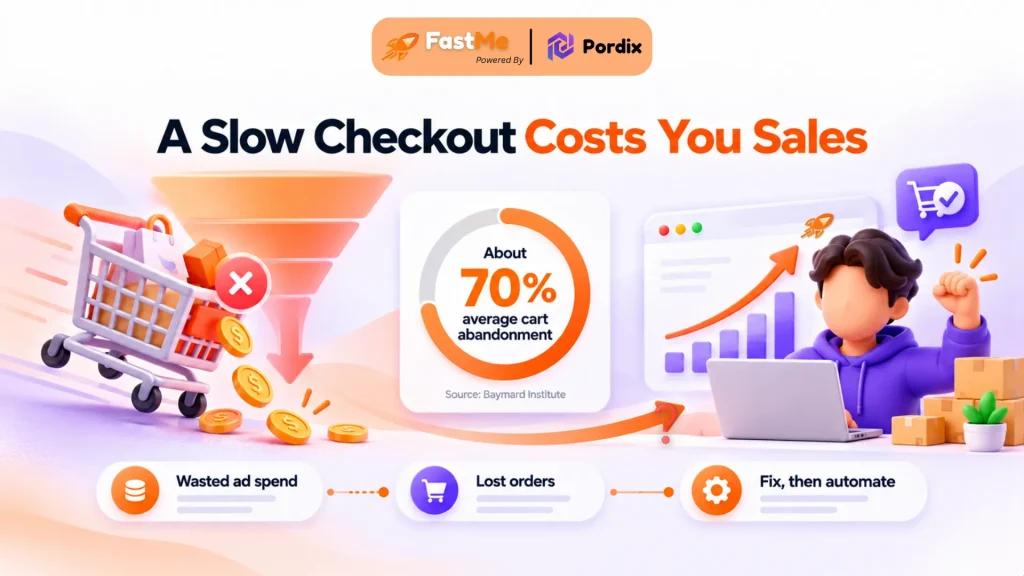
So far, this has been the technical side. Now for the business side. Baymard’s research pulls together 50 studies and puts average cart abandonment at 70.22%. Not every shopper leaves because of speed. But a checkout that stalls gives them one more reason to go. Unanswered questions about shipping or returns can do the same, and an AI chatbot for ecommerce can answer those in the moment.
You paid to bring those shoppers there, so each lost order also wastes your ad spend and SEO work. That is why speed belongs in your performance-driven SEO ROI thinking, not only on your tech to-do list.
Manual fixes work, but they take time. You need staging, careful testing, and a re-check after every plugin update. If that sounds like a second job, a tool can carry part of the load. FastMe (powered by Pordix) is built to automate database cleanup and script deferral, and to leave payment gateway scripts alone so checkout keeps working. Our FastMe site speed guide shows how it fits into a store.
Be clear on one thing. No tool can fix a slow carrier API or a badly coded plugin for you. Diagnose first. Then automate the repeat work.
Conclusion
A WooCommerce checkout slow problem looks scary, but it is usually fixable once you know where it hides. So, why is my WooCommerce checkout slow? Check the three moments. Test the seven causes. Fix the slowest request first, and test a real order after every change.
Do that, and WooCommerce checkout optimization stops being guesswork. If you want to hand off the repeat work, try FastMe (powered by Pordix) and keep your time for the store itself. And if the rest of the WooCommerce site still feels slow, start with Core Web Vitals.
Frequently Asked Questions
Q1. Why is my WooCommerce checkout slow when my homepage loads fast?
Your homepage is easy for a server to cache. Checkout is not. It builds a fresh page for each shopper and runs shipping, tax, and payment code. That extra work exposes problems your homepage hides.
Q2. Why is my WooCommerce site so slow during checkout on busy days?
Traffic spikes mean many shoppers trigger the same heavy requests at once. Live shipping lookups, payment calls, and weak hosting then pile up. Run the Network tab test during a busy period, and ask your host about capacity.
Q3. Does WooCommerce slow down when I add more plugins?
Not by default. A few well-built plugins cost little. The trouble starts when several run code on every checkout update. Use Query Monitor to see which ones cost the most, then keep only the ones that earn their place.
Q4. Is the WooCommerce block checkout slower than the classic checkout?
Not always. The block checkout does more work in the browser, which can slow the first load on weak phones. The classic checkout can be slowed by plugin code on the server. Test both on staging with the steps above, and compare the numbers before you switch.
Q5. Can I fix a WooCommerce checkout very slow problem without a developer?
Often, yes. Form cleanup, removing extra scripts from checkout, and replacing one slow plugin need no code. For database cleanup and script deferral, a tool like FastMe (powered by Pordix) can automate the work. Deep server or custom code issues may still need a developer.