
WordPress Performance Plugin Comparison: What Each One Fixes
You install a speed plugin, and the score barely moves. So you add an image plugin. Then a script plugin. Then something for the database. A month later, the site is no faster, and the checkout page has started to act strangely. This happens a lot, and the plugins are rarely to blame. The usual cause is a mismatch between the tool and the job. One WordPress performance plugin caches pages well but leaves your images alone. Another handles almost everything on its own but gives you little control. A third is built for developers and leaves everyone else guessing.
That is why there is no single best WordPress optimization plugin. Three things decide it: what is really slowing your site, how much setup you are willing to do, and what kind of site you run. This guide compares seven options on those terms: WP Rocket, NitroPack, FlyingPress, LiteSpeed Cache, W3 Total Cache, Perfmatters and FastMe. For each one, you will see what it fixes, where it falls short and who it suits. You will also learn how to test the result, so you are not trusting a green score alone. If you want the short version, choose for the job first and the price second.
What a WordPress Performance Plugin Should Actually Fix
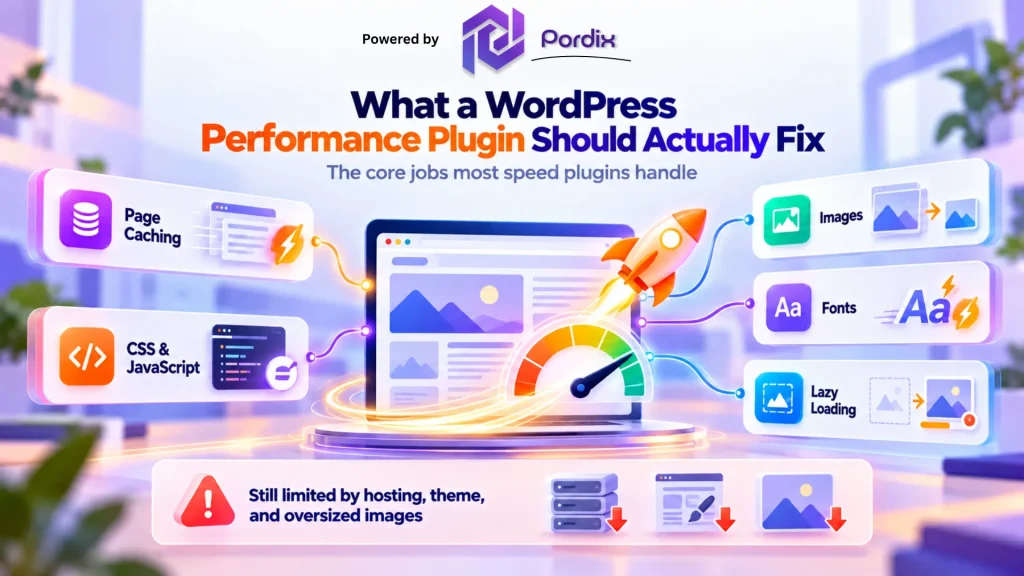
A WordPress performance plugin is a tool that makes your pages load faster by cutting server work, shrinking files and delivering assets more efficiently. Most of them cover some mix of these jobs:
- Page caching: saves a ready-made copy of each page, so the server does not rebuild it for every visit.
- CSS and JavaScript: shrinks files and delays scripts that hold up the page.
- Images: compresses them and serves modern formats such as WebP where browsers support it.
- Fonts: reduces the delay caused by loading fonts.
- Lazy loading: loads images and videos only when a visitor scrolls to them.
Some tools add a CDN or database cleanup. Those are useful extras, but they are not the core job. All of this feeds into Core Web Vitals, the measures Google uses to judge loading speed, responsiveness and visual stability. Google’s web.dev guide to Web Vitals explains each one. If you want the fixes behind them, our guide on how to improve Core Web Vitals in WordPress covers them step by step.
One limit is worth knowing early. A WordPress optimization plugin can only polish what your server hands over. Slow hosting, a heavy theme or a page packed with huge images will still drag you down. No WordPress performance optimization plugin can fully hide those problems, so treat WordPress speed optimization as a job for the whole setup, not one install.
7 Best WordPress Performance Plugin Options Compared
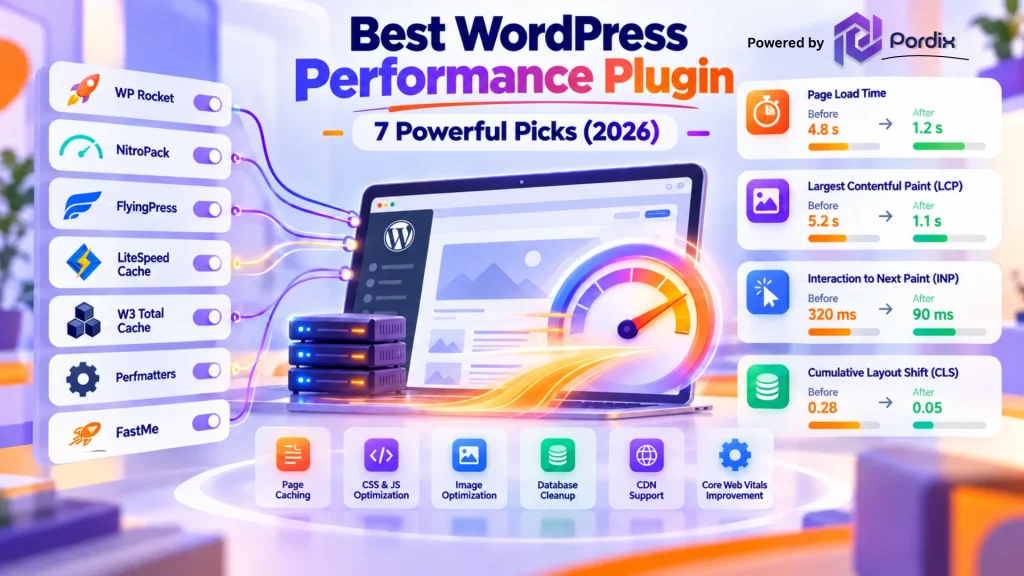
If you are shortlisting a WordPress performance optimization plugin, the table gives a quick view—the sections after it explain the trade-offs in plain terms. The order follows the type of job, not a ranking.
WP Rocket
WP Rocket is the one many people try first. Page caching starts working soon after you activate it, and the settings cover file minification, lazy loading, deferred JavaScript and database cleanup. You get a lot without touching code. The trade-off is cost. It has no free version, and you pay by licence. Image compression and a CDN also come as separate services, so it covers caching and file work rather than the whole job.
NitroPack
NitroPack takes a different route. It is a cloud service that combines caching, a CDN and image optimization, and much of the work happens on its side rather than on your server. That makes it close to hands-off. It also means you depend on an outside platform, and you have fewer places to tweak things by hand. Check how its pricing scales before you commit, especially if your site is large.
FlyingPress
FlyingPress is a premium caching plugin built with Core Web Vitals in mind. It handles page caching and CSS and JavaScript optimization, and its settings feel cleaner than those of older plugins. It suits owners who want sensible defaults without a long settings page. Like WP Rocket, it is paid only. Its community is also smaller, so you will find fewer tutorials and forum answers when something goes wrong.
LiteSpeed Cache
LiteSpeed Cache is free and strong, but it shines on one condition: your host runs LiteSpeed or OpenLiteSpeed. There, it offers server-level caching, image optimization and database cleanup, and it works with QUIC. Cloud CDN. Cloudflare CDN. On other servers, you lose its main advantage. The settings list is also long, so give yourself time to learn it before you change anything on a live site.
W3 Total Cache
W3 Total Cache is for people who like to adjust things themselves. It supports page, browser, object and database caching, with plenty of options for each. That depth helps with custom setups and developer-run sites. It is also easy to misconfigure. If you are not sure what object caching does, this is probably not the place to start.
Perfmatters
Perfmatters is different from the rest. It is not mainly a caching plugin. It gives you a script manager, so you can switch off scripts and styles on pages that do not need them, and it trims other extras that add page weight. That helps a lot on plugin-heavy sites. You do need to know which scripts are safe to turn off, and you will usually pair it with a caching tool.
FastMe
FastMe comes from Pordix, the company behind this site, so we have been plain about its limits. It is built around a guided workflow. You install the plugin, connect it to your FastMe account, choose your settings, test your pages, then watch the results from a dashboard. You can see the steps on the How FastMe Works page.
It covers browser and page cache controls, image and WebP optimization, fonts, CSS, JavaScript, HTML and video. It also keeps reports, logs and diagnostics, so you can see what it changed and what it skipped. Plans are subscription-based, with a seven-day free trial. You can read more on the FastMe product page.
Two honest limits apply. FastMe’s own site does not list a CDN or database cleanup so that you would handle those through your host or another tool. And as a newer product, it has less independent testing behind it than WP Rocket. Run your own before-and-after check. FastMe also says results vary by theme, hosting and plugins.
| Plugin | Best for | Main job | Setup effort | Pricing model |
|---|---|---|---|---|
| WP Rocket | Owners who want hands-off caching | Caching and file optimization | Low | Premium |
| NitroPack | Owners who want a cloud-based, automated setup | Caching, CDN and image optimization | Low | Paid service |
| FlyingPress | Sites focused on Core Web Vitals | Caching and CSS/JS optimization | Low to medium | Premium |
| LiteSpeed Cache | Sites on LiteSpeed hosting | Server-level caching | Medium | Free |
| W3 Total Cache | Technical users | Detailed caching control | High | Free, with a Pro version |
| Perfmatters | Developers and advanced users | Script control | Medium to high | Premium |
| FastMe | Owners who want guided optimization with testing | Cache, media and asset optimization with reports | Low to medium | Subscription, 7-day trial |
Which Plugin Fits Your Website?
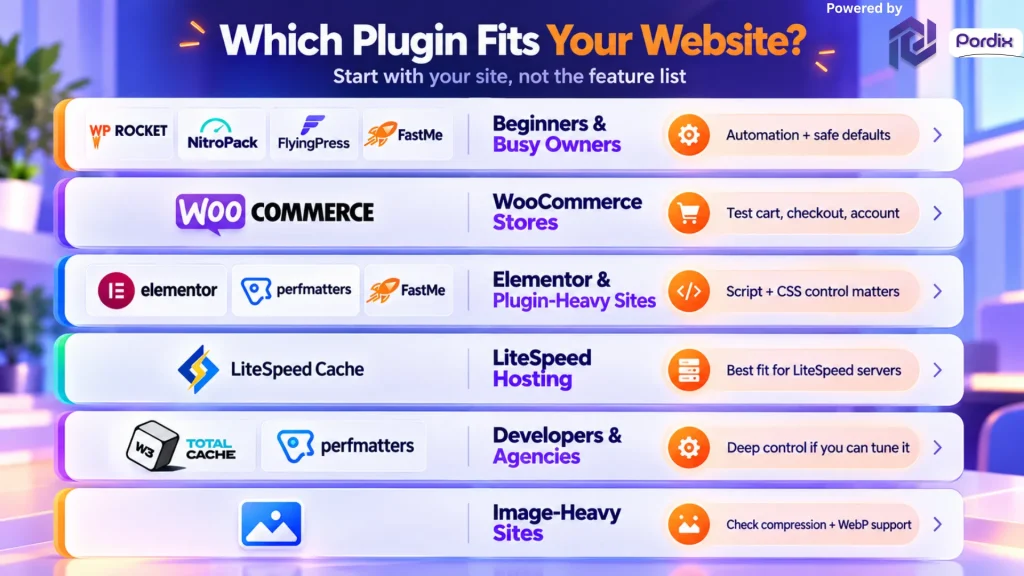
Start with your site, not the feature list. A WordPress performance optimization plugin that suits a blog can be the wrong pick for a store.
- Beginners and busy owners: Look for automation and safe defaults. WP Rocket, NitroPack, FlyingPress and FastMe all lean this way.
- WooCommerce stores: Cart, checkout and account pages are dynamic, so they need careful handling. Test every step of a purchase after each change. Our guide on speeding up the WooCommerce checkout page explains why standard caching can break on the cart.
- Elementor and plugin-heavy sites: Script and CSS control matters most here. Perfmatters gives you manual control. FastMe lists Elementor websites among the sites it is built for.
- LiteSpeed hosting: Start with LiteSpeed Cache. It is free and made for that server.
- Developers and agencies: W3 Total Cache and Perfmatters give you the deepest control, if you have time to tune them.
- Image-heavy sites: Check how each tool handles image compression and WebP before you buy. Some do it in the plugin, while others leave it to a separate service.
One Plugin or Several for WordPress Speed Optimization?
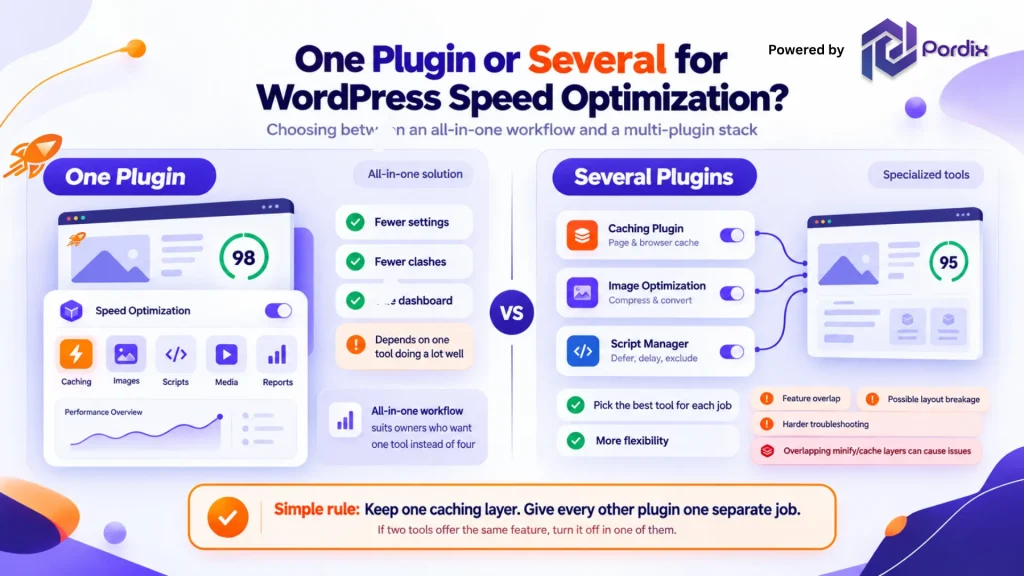
Site owners split on this. Some prefer one WordPress performance optimization plugin to cover most jobs. Others combine a caching plugin, an image plugin and a script manager. One broad tool means fewer settings and fewer clashes. You learn one dashboard, and you know where to look when something breaks. The risk is that you depend on that one tool being good at everything.
A stack lets you pick the best WordPress optimization plugin for each job. The cost is overlap. Two plugins that both minify the same file can break your layout. A caching plugin and a host-level cache can serve stale pages. When problems appear, finding the guilty plugin takes time. A simple rule works well. Keep one caching layer, and give every other plugin a single, separate job. If two tools offer the same feature, turn it off in one of them. If you add a CDN, read whether a CDN affects SEO first.
FastMe is built for the first approach. It brings cache, media and asset controls into one workflow, with logs that show what it changed. That suits owners who would rather manage one tool than four. It will not suit everyone, especially if you already have a setup you trust.
How to Test Any WordPress Optimization Plugin Before You Trust It
A higher score on one test is not proof. Good WordPress speed optimization starts with a simple before-and-after routine.
- Take a baseline. Run your homepage, one blog post and one key landing or product page through PageSpeed Insights. Save the results.
- Back up, then change one thing. Switch on one group of settings at a time, so you know what caused a problem.
- Retest the same pages. Use the same tool and the same pages, ideally at similar times of day.
- Check real-user data. Lab scores come from a simulated test. Field data comes from real visitors. Google’s targets are an LCP of 2.5 seconds or less, an INP of 200 milliseconds or less and a CLS of 0.1 or less, measured at the 75th percentile. web.dev explains how these thresholds were defined.
- Click through the site. Check menus, forms, popups, sliders, the cart and checkout, on desktop and mobile.
Field data moves slowly, so give it a few weeks before you judge. Retest after theme, plugin and WordPress updates too. If the site is still slow after all this, the cause may sit outside the WordPress optimization plugin. Our guide on how to speed up a WordPress site walks through finding it.
Conclusion
The right WordPress performance plugin is the one that fixes your slowest pages without breaking anything that makes you money. That depends on your site far more than on any ranking list.
Here is the short map. WP Rocket and FlyingPress suit owners who want strong caching with little setup. NitroPack suits those who prefer a cloud service doing most of the work. LiteSpeed Cache is the natural first choice on LiteSpeed hosting. W3 Total Cache and Perfmatters reward people who like control. FastMe suits owners who want one guided workflow with testing, logs and reports.
Whichever you pick, do not skip the testing step. WordPress speed optimization rewards patience, so run a baseline, change one thing at a time, and look at real-user data before you call it a win. Keep to one caching layer, and be wary of any WordPress performance optimization plugin that promises perfect scores on every site.
If a guided approach sounds right for you, FastMe comes with a seven-day free trial so that you can test it on your own pages.
Frequently Asked Questions
Q1. What is the best WordPress performance plugin?
There is no single best choice. For hands-off caching, WP Rocket and FlyingPress are common picks. NitroPack suits a cloud-based setup. LiteSpeed Cache is the natural choice on LiteSpeed hosting. FastMe suits guided optimization with testing and logs. Match the tool to your site, then test it.
Q2. Do I need more than one plugin to speed up WordPress?
Usually not. Keep one caching layer, then add a separate tool only for a job the first one does not cover, such as script control. Avoid two plugins doing the same task.
Q3. Can a speed plugin hurt my website?
Yes, if the settings are too aggressive. Delayed scripts and combined files can break menus, forms or checkout. Back up first, change one thing at a time and test your key pages.
Q4. Is a free speed plugin enough?
For many smaller sites, yes. LiteSpeed Cache is a strong free option on LiteSpeed hosting. W3 Total Cache is free too, but it takes more technical knowledge. Paid tools LIKE FastMe mainly save you setup time, provide detailed insights and offer proper support.
Q5. How do I know my plugin is working?
Compare the same pages before and after, using PageSpeed Insights. Then check real-user data in Google Search Console. Lab scores show the change quickly, but field data takes a few weeks to catch up.